









C9 GROUP · MICROSOFT TEAMS CALLING

Make Microsoft Teams your business phone system.

Already using Teams for meetings, chat and collaboration? C9 can bring your business calling into the same environment.

We review Microsoft Teams Phone, external calling connectivity, business numbers, call queues, auto attendants, devices, migration and ongoing management together.

Existing business numbers reviewed
Microsoft + Telco expertise
Call flows configured around the business
Managed migration and ongoing support
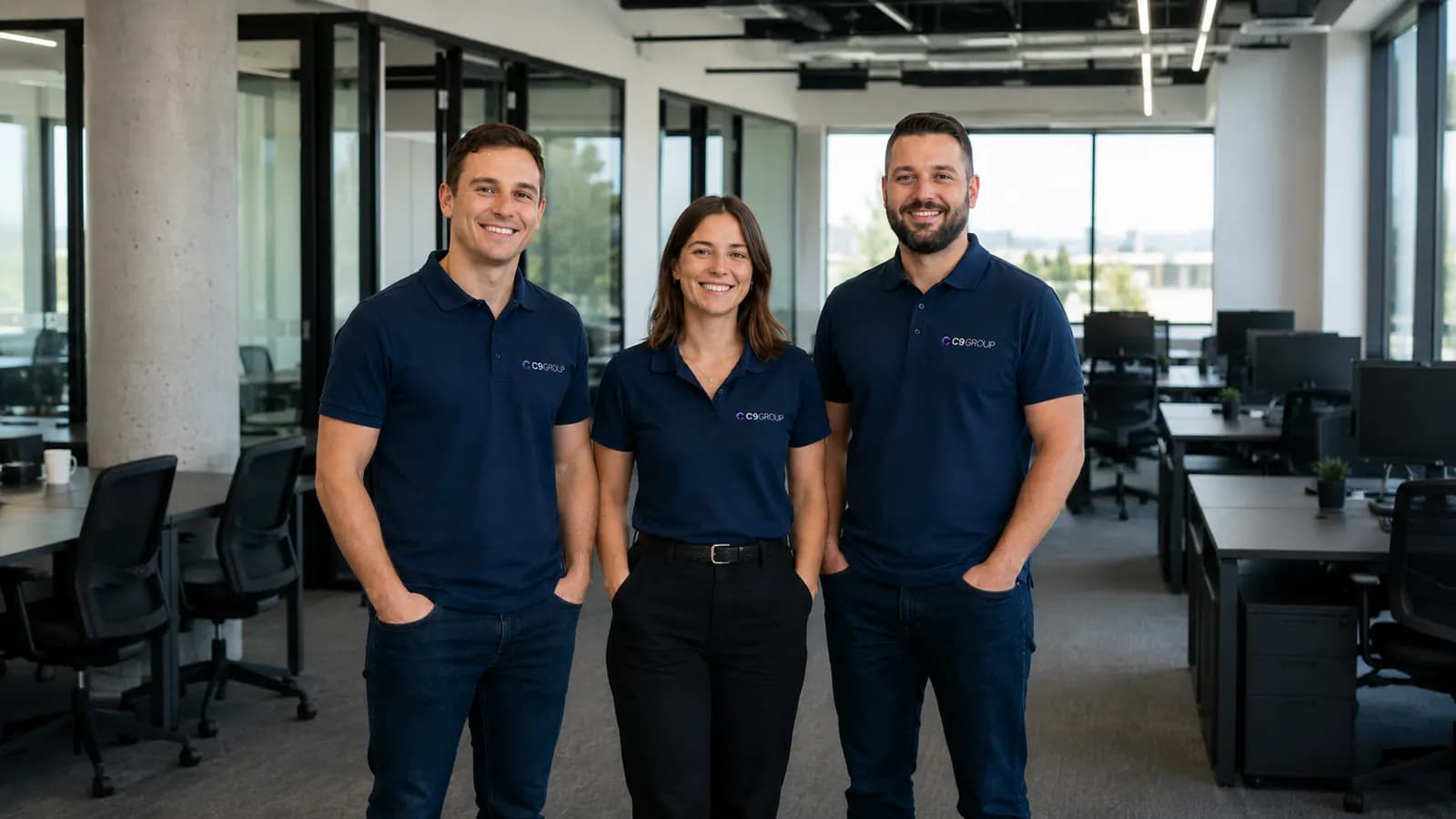
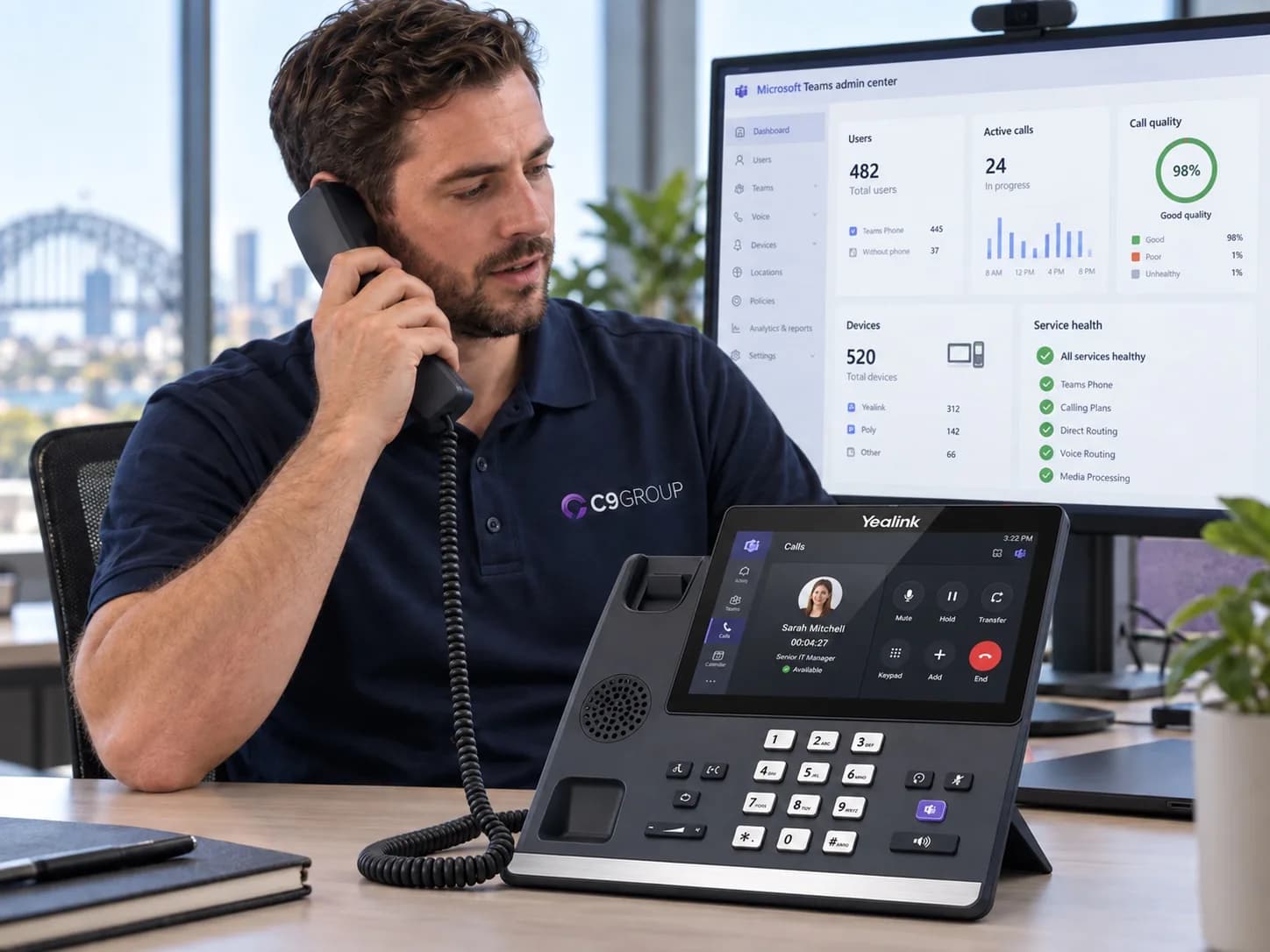
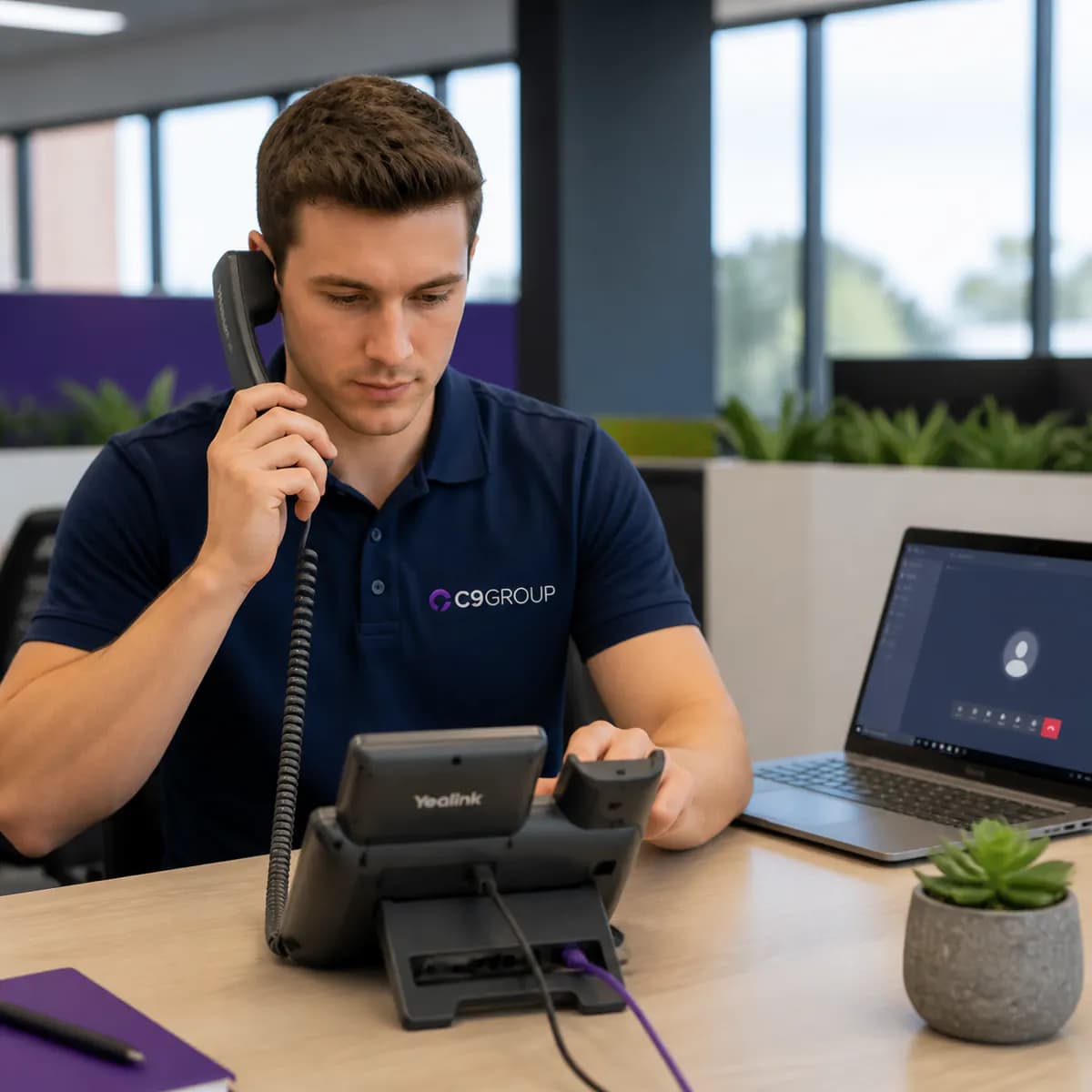
C9 GROUP consultant helping a business plan Microsoft Teams Calling
Trusted by Australian businessesIn good company. Trusted by businesses across Australia.
CEVA Logistics
XWise Group
Forty Winks
Clarks
DCO
Novo
Chobani
Spendless Shoes
Ray White
Wild Rhino
Retail Care
The Entourage
Above Zero
PLAN MICROSOFT TEAMS CALLING

Start with users, numbers, call flows and voice connectivity.

Teams Phone works best when the Microsoft tenant, telephone numbers, reception flows, network and devices are reviewed before configuration begins.

MICROSOFT TEAMS CALLING PATHS

The right setup depends on how the business handles calls.

Individual users, reception teams and multi-site environments need different calling behaviour. C9 maps these before configuring Teams Phone.

See FAQ
Browse plans

Individual Business Calling

User calling

Typical requirements

User numbers + voicemail

For employees who primarily need their own business number and the ability to make and receive calls from Teams.

Typical requirements

User numbers
Inbound and outbound calling
Voicemail
Transfer and forwarding
Desktop and mobile calling
Plan User Calling

Reception & Customer Calling

Customer entry

Typical requirements

Main number + queues

For organisations where customer calls enter through a main number before reaching a department or employee.

Typical requirements

Main numbers
Auto attendants
Call queues
Business hours
Overflow routing
Shared answering
Map Reception Flows

Multi-Site & Complex Calling

Standardisation

Typical requirements

Sites + policies

For businesses standardising voice across several locations, departments or larger groups of users.

Typical requirements

Multiple locations
Larger number ranges
Standard call flows
User policies
Migration sequencing
Central administration
Review Complex Calling
TEAMS PHONE ESSENTIALS

The phone system needs more than a Teams button.

C9 reviews the licensing, calling model, numbers, routing, policies, devices and network path that make Teams Phone work as a business phone system.

Microsoft licensing

Confirm the Microsoft licensing required for the users and functionality being deployed.

External calling connectivity

Choose the appropriate PSTN connectivity model for the organisation.

Existing business numbers

Document the numbers currently used by employees, departments and main business lines.

Call queues

Determine how inbound customer calls should move through the business.

Auto attendants

Design menus and routing where callers need to choose departments or functions.

Voice policies

Configure calling permissions and behaviour around different users.

Devices

Decide who will use headsets, Teams-compatible desk phones, software calling or a combination.

Network readiness

Assess whether the network supporting Teams voice is ready for real-time calling.

TEAMS PHONE ARCHITECTURE

C9 works out how Teams should connect to the telephone network.

Depending on the organisation, relevant options can include Microsoft Calling Plans, Operator Connect, Direct Routing or other supported Microsoft voice architectures.

Straightforward Microsoft environment

Microsoft Calling Plans

A simpler cloud calling model may suit businesses without complex carrier or telephony dependencies.

Existing carrier requirements

Operator Connect

Businesses retaining supported carrier relationships may need a model that keeps Microsoft and voice services coordinated.

More complex environments

Direct Routing

Multi-site businesses, larger number ranges, integrations or existing voice infrastructure may need additional design work.

C9 recommendation

We review Microsoft, voice and network requirements together before recommending the final calling architecture. The technology should follow the business requirement, not the other way around.

STANDALONE VS C9 MANAGED TEAMS PHONE

The technology is only part of the outcome.

Teams Phone becomes easier to operate when numbers, queues, routing, users, network readiness and ongoing changes are managed together.

Microsoft environment

C9 Managed Teams Phone

Considered as part of the design.

Standalone Teams Calling deployment

Customer manages separately.

External calling

C9 Managed Teams Phone

Connectivity model reviewed against requirements.

Standalone Teams Calling deployment

Purchased as a voice component.

Numbers

C9 Managed Teams Phone

C9 coordinates agreed number migration.

Standalone Teams Calling deployment

Customer coordinates migration.

Call flows

C9 Managed Teams Phone

Queues, attendants and routing designed around the business.

Standalone Teams Calling deployment

Customer configures.

Network

C9 Managed Teams Phone

Voice readiness can be reviewed with the wider network.

Standalone Teams Calling deployment

Often treated separately.

User rollout

C9 Managed Teams Phone

Migration and adoption requirements can be planned.

Standalone Teams Calling deployment

Primarily technical activation.

Ongoing changes

C9 Managed Teams Phone

C9 remains involved across the managed environment.

Standalone Teams Calling deployment

Customer manages multiple interfaces.

MANAGED MICROSOFT VOICE

Moving the phone system into Microsoft does not make management disappear.

Businesses change constantly. Employees join, departments move, opening hours change, numbers are added and queues need adjustment. C9 stays involved after deployment.

Users: Add and change calling requirements as teams evolve.

Numbers: Maintain visibility over number assignments and service requirements.

Queues & attendants: Update business routing as teams and operating hours change.

Policies: Manage relevant calling behaviour and permissions.

Devices: Support the agreed Teams voice endpoint environment.

Escalation: Coordinate relevant Microsoft, voice and network investigation across the environment C9 manages.

WHY PARTNER WITH C9

One partner across the Microsoft and telecommunications layers.

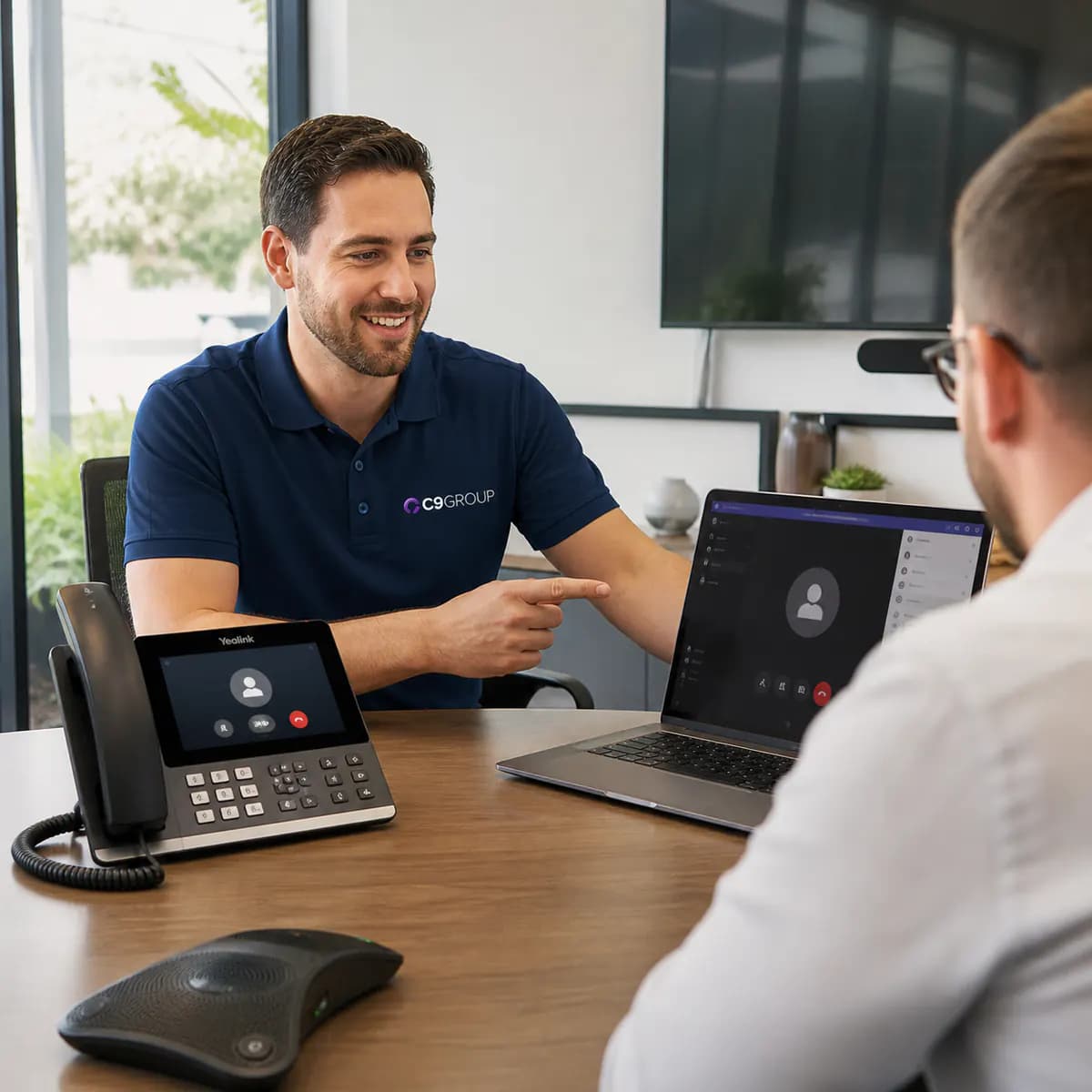
C9 GROUP staff member reviewing Teams Calling and phone requirements with a business customer

Microsoft and Telco expertise together

Teams Phone is not purely a Microsoft project and it is not purely a telecommunications project.

Existing call flows mapped first

We understand how customers reach the business today before designing how Teams should handle those calls tomorrow.

Number migration planned properly

Existing numbers and dependencies are documented before the migration sequence is agreed.

Network readiness included

Voice quality depends on more than Microsoft Teams. Connectivity and local network conditions matter as well.

Ongoing management after go-live

C9 remains involved for changes, administration, support and future voice requirements.

C9 TEAMS CALLING DELIVERY

From existing phone system to managed Teams Phone.

Review Microsoft environment, users, existing phone system, numbers, call flows and devices.

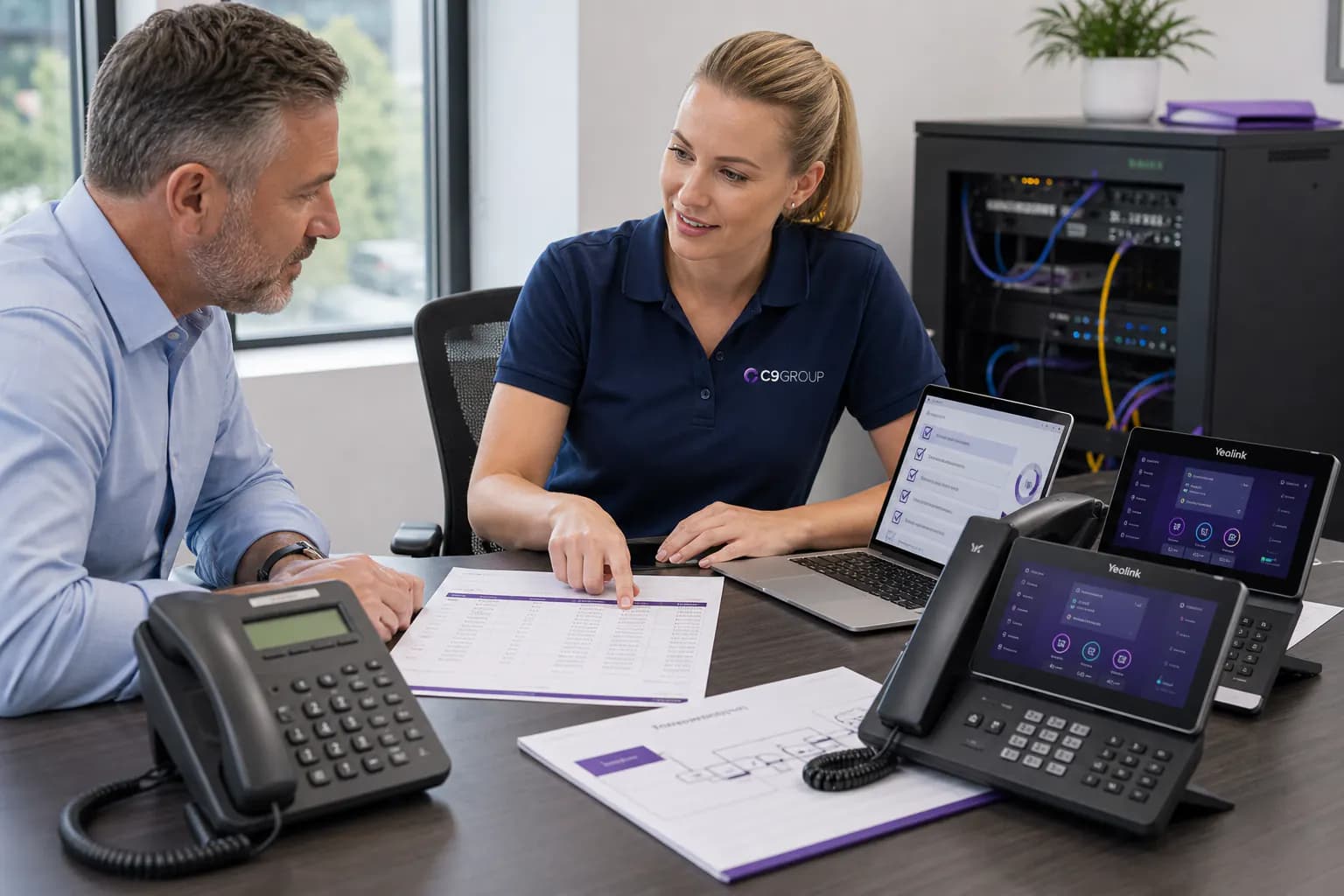
C9 GROUP team coordinating service delivery

ACTIVE STAGE

Discover

Review Microsoft environment, users, existing phone system, numbers, call flows and devices.

Microsoft Teams Calling FAQs

Teams Calling commonly refers to using Microsoft Teams to make and receive external business telephone calls. Microsoft’s cloud phone-system product is called Microsoft Teams Phone.

Start with a few quick details.

Plan Your Microsoft Teams Calling Setup

Tell us what you use today and what you want your business calling environment to look like. C9 will review the Microsoft, voice and network requirements and recommend the appropriate next step.

Step 1 of 3

What do you need help with?

What do you need help with?

Choose the area closest to what you need. You can select ‘Not Sure’ if you want guidance.